Every link in your SharePoint tenant, sharing wrappers and all
A tenant-wide scanner, a backlinks index, sharing-wrapper canonicalization, and one-button find-and-replace for every page and document.
charlievogt/spo-link-inventoryDays before we cut over the first site in our rolling SharePoint migration, a review team we’d pulled together (senior leaders, project managers, content owners from across the org, and other volunteers) came back with a question. “Most of the links don’t work. Some point at SharePoint Online, some at the on-prem farm, some at totally broken paths. A lot of them load an ice cream cone or a bicycle. Does the image shown indicate different types of problems?”

Look closely: the bike has a flat tire, the ice cream cone has fallen on the ground, the paper airplane has crashed. Each illustration is itself a small failure. A nice touch.
It does not. SharePoint’s not-found page rotates through a small set of friendly illustrations at random. The bicycle and the ice cream cone mean the same thing as the paper airplane. It was an earnest question, asked by people trying to make sense of a wall of broken links. The pattern was there, just not in the icons. It was hidden inside thousands of pages no one had read in three years. Roughly 40% of the links on the staged pages were broken.
A SharePoint tenant migration breaks links you did not know existed. And then there are sharing links.
Modern pages have hyperlinks in <a href> tags inside their canvas content. Classic pages have them in raw HTML field values. Word documents have them in document.xml.rels. Excel workbooks have them in xl/worksheets/_rels/sheetN.xml.rels. PowerPoint has them per slide. PDFs have them as /Link annotations with /URI actions. After a few years of normal tenant use, links accumulate by the tens of thousands. After a migration that consolidates hubs, renames site collections, or retires legacy hosts, a sizable fraction of them quietly turn into 404s. Nobody notices until somebody clicks one.
To my knowledge, Microsoft does not ship a tenant-wide tool for finding any of them. They have search, site analytics, migration assessment. None of those tell you “this PDF in HR’s library has six external hyperlinks, two of them point at a host you decommissioned six months ago.” The closest first-party answer is a PowerShell script that walks one site at a time, which is fine for ten sites and unusable at five thousand.
So I built one.
Sharing links are the part that hurts
When a user clicks “Share” on a file in a SharePoint site, the platform generates a wrapper URL. The most common form looks like this:
https://tenant.sharepoint.com/:b:/r/sites/demo-hr/Shared%20Documents/handbook.pdf The /:b:/r/ prefix is the platform’s “browser viewer” sharing redirect. The path after it is the actual server-relative path of the file. These get pasted into modern pages, OneNote, Teams chats, intranet articles, and emails sent six years ago. They render fine as long as nothing changes. The moment the file moves, gets renamed, or the library gets reorganized, the link breaks. More subtly, the URL is not the canonical SharePoint URL for that file. Two pages that link to the same file will often have two completely different URLs in their HTML: one wrapped, one direct, and a naive find-and-replace will miss half of them.
The canonical form is the library viewer URL:
https://tenant.sharepoint.com/sites/demo-hr/Shared%20Documents/Forms/AllItems.aspx?id=/sites/demo-hr/Shared%20Documents/handbook.pdf That URL is stable, library-aware, and is what site owners actually want their pages to use. The tool resolves the /:b:/r/ form into that canonical URL and offers a one-click “Fix this link” that rewrites the page in place. The same approach works for the Office Online viewer wrappers (/:w:/r/ for Word, /:x:/r/ for Excel, /:p:/r/ for PowerPoint, /:o:/r/ for OneNote): strip the prefix, decode the path, build the canonical URL.
A second short-link form exists where the path itself is replaced by an opaque token. Microsoft documents this as the shorter share link format, the successor to the legacy guestaccess.aspx?share=... URLs. The trailing segment is a sharing token, not a server-relative path, so canonicalization is not a string operation. The supported way to resolve one is to encode the URL into a sharing token and call GET /shares/{shareIdOrEncodedSharingUrl} against Microsoft Graph, which returns the underlying driveItem. Microsoft’s docs explicitly call out applications that parse a URL to determine its sharing-link type as one of the scenarios the new format breaks, and recommend migrating to Graph rather than continuing to parse. The tool flags these in the inventory and leaves the resolution for a future iteration.
I did not know how many ways the same file could be linked to
The sharing wrapper is one form. It is not the only form. Pick a single PDF in a single library and look at every link in the tenant that points at it. A short, non-exhaustive list of the variants I found, with the distinguishing fragment highlighted:
All point at the same PDF. All show up in real pages.
The last one took the longest to figure out. A real example, anonymized only by tenant:
The #search=eft is the fingerprint. The link “works” in the sense that something renders. It just is not what the author thought they were linking to. Hundreds of those scattered across the tenant, all from one bad habit nobody knew was bad.
A naive find-and-replace catches one or two of these forms and misses the rest. A regex over <a href> values is worse: it matches a literal string, and the same file produces dozens of literal strings. The classifier’s job is to recognize all of these as references to the same canonical resource and rewrite them to one stable URL. Getting that right took longer than writing the scanner did.
What the tool actually does
Once you have a list of every variant, you need a place to put them and a way to act on them. The result is an Azure Function plus an SPFx web part.
The Function is a tenant-wide scanner. It walks every site collection in scope, pulls every modern page, opens every Office document and PDF, extracts every hyperlink, classifies and normalizes each one, and writes the lot into Azure Table Storage with two indexes: by source page, and by target URL.
Every link is tagged with one of a handful of classes: office-online, sharing-link, spo-internal, malformed-spo-link, onprem, relative. Each class has its own canonicalization rule. The “Fix this link” button uses the canonical form to rewrite the page so all references to a given file converge on the same URL across the tenant.
The web part is the UI a tenant admin uses. Search the inventory. Pick a URL. See every page and every paragraph that references it. Click any row to see the classification, the canonical resolution, and the diff that will be applied if you click “Fix this link.”
End-to-end in a few clicks
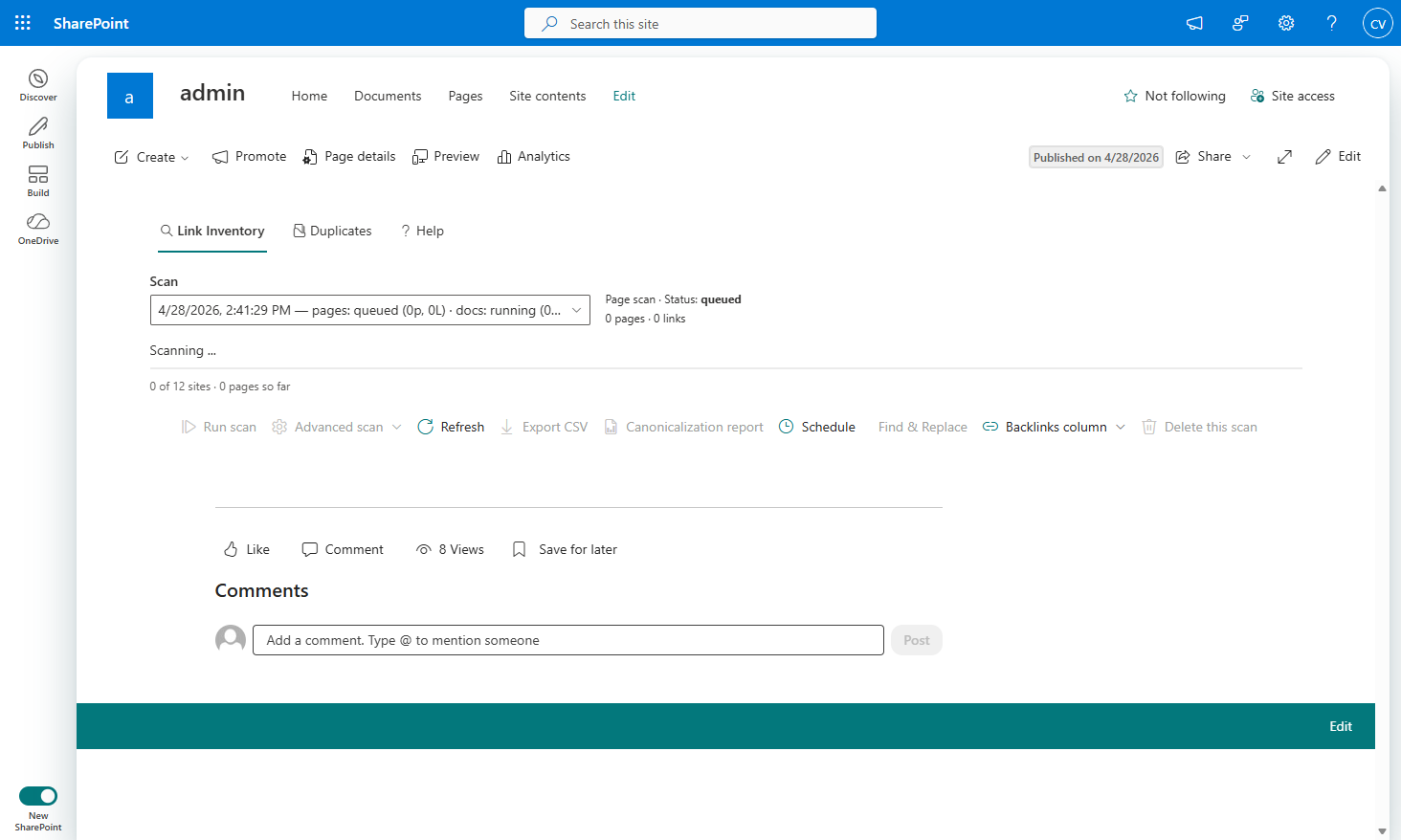
Run a scan. Inventory loads. Drill into a sharing-link row. The detail panel shows the wrapper URL, the canonical URL it resolves to, and a “Fix this link” button. Click it, preview the diff, apply. The result row deep-links to the patched page so the change is verifiable in one click. The “rewrite all of these” version is the same flow against many rows at once.
The backlinks index is the other half of the product
Given a URL, “where is this referenced” is the question you want answered after a migration.
“I’m about to retire legacy-portal.example.com. Who is going to scream when I do?” Pull up the URL, see 137 references across 23 sites, send the list to the affected site owners before flipping the DNS.
“This PDF was just removed. Who linked to it?” Same query, answered in seconds instead of by asking around.
“This intranet section is being deprecated. Which other pages still point at it?” Backlinks index, page count, done.
The scanner runs daily on the schedule a tenant admin sets. The index is fresh enough that “what links to what” is always answerable within a day.
Find-and-replace, with the audit log intact
Once you have the inventory, rewriting is the natural next step. Pick a URL, pick its replacement, kick off a job. The job rewrites modern pages by PATCHing each page’s CanvasContent1 field through the Site Pages list-item REST endpoint. Document rows are deliberately read-only.
The interesting design detail: writes go through user on-behalf-of, not the app’s permissions. The web part hands the calling user’s SPFx token to the Function. The Function exchanges it for a delegated token. Writes happen as that user.
So the SharePoint version history shows the actual user who changed each page. Not “the app rewrote 4,000 pages last Tuesday.” A tenant admin running find-and-replace gets to write everywhere. A site owner running it is scoped to the sites they own. Compliance teams care about this in a way they do not care about most things, and app-only writes would have erased the trail of who did what.
The web part exists because PowerShell does not
An Azure Function and an SPFx web part to do what could have been a PowerShell script. PowerShell does not handle five thousand site collections gracefully, and the people who care most about tenant link rot are not going to run PowerShell anyway. Site owners want a search box. Tenant admins want a “rewrite all of these” button. Compliance teams want the audit trail intact. The web part is the part that gets the tool used.
Which copy is the real one
The inventory shipped. The review team came back with a different question. They were now staring at libraries that had multiple copies of the same policy PDF and they wanted to know which one to keep. Some pairs were byte-identical. Some were not, but probably should have been. Some were genuinely different documents that happened to share a filename.
There are five distinct flavors of “is this the same document?”, and the obvious flavor is the least useful. That’s the next post.
The migration finished. The tool still finds things. Handle the next fire that comes up.